

WP Eventin – AI Addon
Updated on: February 12, 2026
Version 1.2.1
Single Purchase
Buy this product once and own it forever.
Membership
Unlock everything on the site for one low price.
Product Overview
Elevate your event management with the WP Eventin – AI Addon, a powerful tool designed to streamline your workflow and enhance user engagement. This innovative addon leverages AI technology to automate various tasks, making it easier than ever to organize and promote events. With its intuitive interface, you can quickly set up event details, manage registrations, and analyze attendee data. Plus, the AI-driven insights help you tailor your marketing strategies for maximum impact. Whether you're hosting a conference, workshop, or any gathering, this addon will give you the edge you need.
Key Features
- AI-powered analytics for smarter event marketing decisions.
- Seamless integration with existing WP Eventin features.
- Automated attendee management to save time and reduce errors.
- Customizable notifications and reminders for better engagement.
- Insightful reports that help you track event performance.
- User-friendly interface designed for both beginners and pros.
- Real-time updates to keep your event information current.
- Enhanced ticket sales tracking and management capabilities.
Installation & Usage Guide
What You'll Need
- After downloading from our website, first unzip the file. Inside, you may find extra items like templates or documentation. Make sure to use the correct plugin/theme file when installing.
Unzip the Plugin File
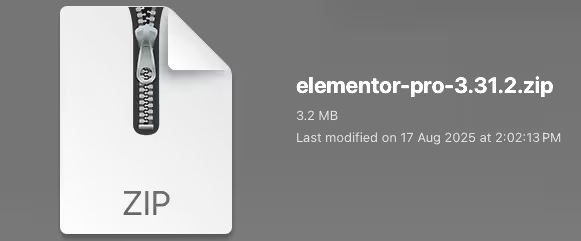
Find the plugin's .zip file on your computer. Right-click and extract its contents to a new folder.
Upload the Plugin Folder
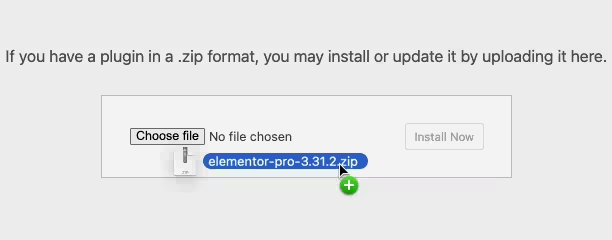
Navigate to the wp-content/plugins folder on your website's side. Then, drag and drop the unzipped plugin folder from your computer into this directory.
Activate the Plugin
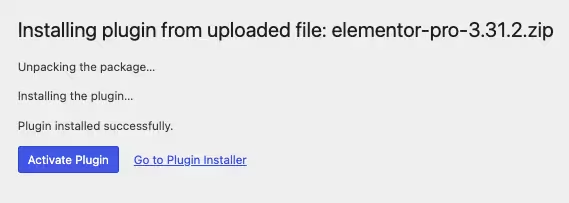
Finally, log in to your WordPress dashboard. Go to the Plugins menu. You should see your new plugin listed. Click Activate to finish the installation.
PureGPL ensures you have all the tools and support you need for seamless installations and updates!
For any installation or technical-related queries, Please contact via Live Chat or Support Ticket.