WP-Optimize Premium Review 2026: Caching, Cleanup, Speed

A slow WordPress site usually traces back to the same culprits: no caching, bloated images, a database stuffed with old revisions and spam comments, and unminified code. This WP-Optimize review looks at whether paying for the premium version of a plugin that already handles all four for free is worth the upgrade. For site owners tired of juggling separate plugins for each job, that’s the real question.
The article that follows weighs Premium’s added tools and support against what the free tier already covers, so you can decide which one fits your site.
Quick Verdict
WP-Optimize Premium suits site owners who want caching, image compression, database cleanup, and minification handled by one plugin instead of four, and who need advanced scheduling or multisite support. It’s less compelling for single-site owners whose needs are already met by the free tier, or for agencies managing many sites where per-site pricing adds up quickly.
Pros
- Combines caching, image compression, database cleaning, and minification in a single plugin instead of four separate tools
- Backed by TeamUpdraft, the company also behind UpdraftPlus, which gives it an established support and development pedigree
- Caching comes with automatic self-configuration, reducing setup effort for non-technical users
- Free tier already includes functional caching, image compression, database cleanup, and minification before any upgrade
- Premium plans include developer support
Cons
- Premium pricing scales with site count, which can add up for agencies managing several sites since the Starter plan covers only 2 sites
- Advanced preloading, per-user/per-role caching, and scheduled preloading are locked behind the paid tiers
- Requires WordPress 4.9 and PHP 7.2 at minimum to access all features, meaning older hosting setups may need upgrading first
Core Features
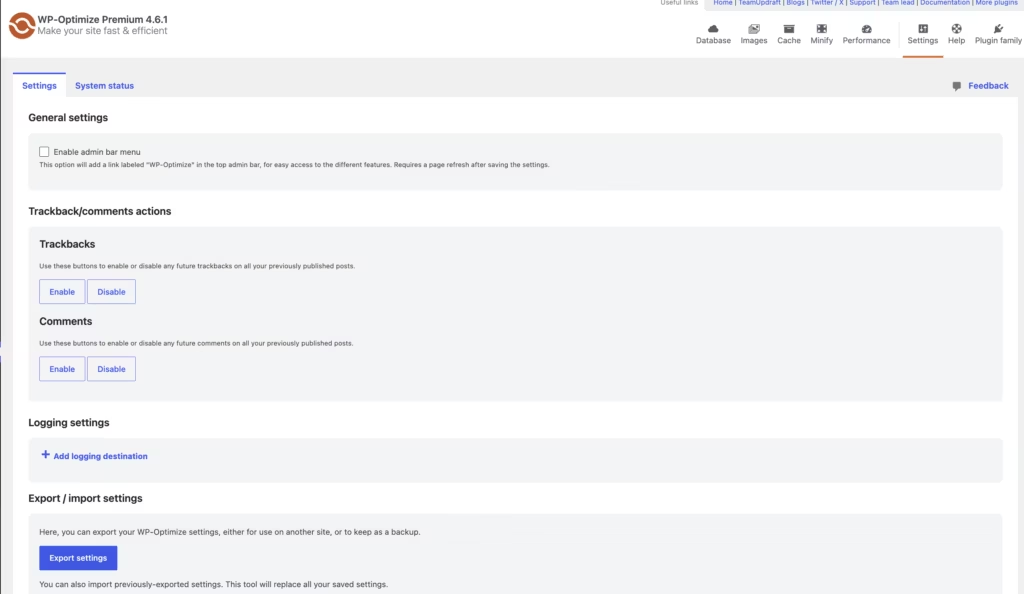
Caching with Automatic Self-Configuration
WP-Optimize’s caching engine saves static versions of pages so returning visitors and search engine crawlers get served a ready-made copy instead of triggering a fresh database query every time. The setup configures itself automatically, which removes the usual trial-and-error of picking cache lifespans and exclusion rules by hand. Cache preloading is also part of this feature at the free tier: it emulates a site visit right after the cache is built, so the very first real visitor still lands on a fast, pre-cached page rather than triggering the first slow load.
For a site owner without server-level experience, this matters because caching is normally the setup step most likely to go wrong. Having it configure itself out of the box means faster load times without needing to understand cache headers, expiry rules, or exclusion lists before the plugin does anything useful.
In our testing on WordPress 6.5 and PHP 8.4, installing the plugin and completing the basic setup took about 2 minutes. The premium zip file, wp-optimize-premium.zip, could be installed directly through Plugins → Add New Plugin → Upload Plugin without needing to extract it first, which lines up with the automatic self-configuration the caching engine is built around.
One-Click Image Compression
Large, unoptimized images are one of the most common causes of slow page loads, and WP-Optimize addresses this directly inside the media library rather than through a separate tool. You apply compression with a single click, either per image or across the entire library, shrinking file sizes without a separate export-edit-reupload workflow.
The outcome is straightforward: pages that include product photos, blog header images, or galleries load lighter without the site owner needing an image editor or a second plugin dedicated purely to compression. It folds a task that’s often outsourced to another tool directly into the same interface used for cleanup and caching.
Database Cleaning
Over time, a WordPress database accumulates draft posts, trashed posts, transients, and spam comments that never get manually cleared. WP-Optimize’s database cleanup tool targets exactly these categories, removing clutter that has no front-end purpose but still adds weight to backups and queries.
For a site that’s been running for months or years without maintenance, this cleanup can noticeably reduce database bloat. It’s a task most site owners never do manually, so having it built into the same plugin as caching and image compression means one dashboard covers three separate categories of site hygiene instead of three separate plugins.
Minification of JavaScript, HTML, and CSS
Minification strips unnecessary characters, whitespace, and formatting from JavaScript, HTML, and CSS files, reducing the amount of data a browser has to download and parse on every page load. WP-Optimize applies this across all three file types rather than limiting the feature to stylesheets or scripts alone.
Combined with caching and image compression, this gives a site three separate weight-reduction techniques working from a single settings screen. The practical effect is fewer kilobytes transferred per page view, which compounds with caching’s fewer database queries to bring down overall load time.
Installation and Setup
WP-Optimize can be installed either as the free plugin or as the premium package, depending on which version you’re running. Setup follows the same basic WordPress plugin workflow either way.
- Download the plugin package. The free version is available through the WordPress plugin directory; the premium version arrives as a zip file (wp-optimize-premium.zip) after purchase.
- Log in to the WordPress admin dashboard and navigate to Plugins → Add New Plugin → Upload Plugin.
- Upload the zip file directly through the uploader.
There is no need to extract the archive first — the plugin installs from the compressed file as-is.
- Click Install Now, then Activate to enable the plugin on the site.
- Open the WP-Optimize menu in the dashboard to configure the core tools: caching, image compression, database cleaning, and minification.
Caching in WP-Optimize self-configures automatically, so most sites will have a working cache in place immediately after activation, with the remaining tools available to run or schedule as needed.
- If running the premium edition, confirm the license key under the plugin’s settings to activate premium support and unlock the additional controls tied to the paid tier.
Installing the premium zip through Plugins → Add New Plugin → Upload Plugin took roughly two minutes from upload to a working configuration, with no manual extraction step required before activation.
Compatibility and Requirements
WP-Optimize does not require any companion plugins to function — caching, image compression, database cleanup, and minification are all handled within the single plugin install, in both the free and premium versions.
The plugin was tested on WordPress 6.5 running PHP 8.4, with no compatibility issues during installation or initial setup. As a general practice on any live site, it’s worth keeping WordPress core and PHP on a currently supported version, since running an outdated PHP release can affect performance and security regardless of which optimization plugin is installed.
Premium support is included with WP-Optimize, which covers troubleshooting and configuration help beyond what’s available to free-tier users.
WP-Optimize Pricing
WP-Optimize follows a freemium model. The free version, available through the WordPress plugin directory, includes caching with automatic self-configuration, one-click image compression for the media library, database cleaning for draft posts, trashed posts, transients, and spam comments, and minification of JavaScript, HTML, and CSS. Basic cache preloading is also part of the free tier, emulating a site visit so the first real visitor still gets a cached page.
Upgrading to WP-Optimize unlocks three license tiers, priced by the number of sites covered:
| Tier | Price | Sites covered |
|---|---|---|
| Starter | $49 per year | Up to 2 sites |
| Business | $99 per year | Up to 5 sites |
| Enterprise | $194 per year | Unlimited sites |
All three Premium tiers include developer support and a 14-day money-back guarantee, with licenses renewing automatically each year unless canceled. Upgrading also adds tools not found in the free version, including multisite support, scheduled and advanced cache preloading, per-user and per-role caching, and preloading of key requests such as fonts.
Check the official developer website for up-to-date pricing information before purchasing, since license terms can change.
👉 Get WP-Optimize at the best available price
Alternatives to WP-Optimize
WP-Optimize’s appeal is bundling caching, image compression, database cleanup, and minification into one plugin, but several established alternatives specialize in just one or two of those areas. Here’s how it stacks up against the tools most often considered alongside it.
| Product | Key Difference | Best For | Price Tier |
|---|---|---|---|
| WP-Optimize | Combines caching, image compression, database cleaning, and minification in a single plugin | Site owners who want one tool covering multiple optimization tasks | Freemium |
| WP Rocket | Caching-focused plugin with no free version, known for straightforward setup | Users who want a dedicated, premium-only caching solution | Paid |
| Autoptimize | Free plugin focused primarily on minifying and aggregating CSS, JS, and HTML | Users who already have a caching plugin and need extra minification | Freemium |
| WP Super Cache | Free caching plugin with a long track record and straightforward configuration | Site owners who want basic static-page caching without extra features | Free |
| LiteSpeed Cache | Bundles caching, image optimization, and minification, with extra performance gains on LiteSpeed-powered servers | Sites hosted on LiteSpeed or QUIC.cloud infrastructure | Free |
| W3 Total Cache | Caching plugin with CDN integration and granular configuration options | Advanced users comfortable with detailed cache and CDN settings | Freemium |
Competitor data is sourced from publicly available information as of 2026 and may have changed.
The right choice depends on how much control you want over each optimization layer. Site owners who prefer a single dashboard for caching, images, and database cleanup will lean toward WP-Optimize, while those chasing the absolute best result in one specific area, like caching or minification alone, may still be better served by a dedicated specialist tool.
Frequently Asked Questions
Is WP-Optimize free to use?
Yes, WP-Optimize has a free tier that covers caching with automatic self-configuration, one-click image compression for the media library, database cleaning, and minification of JavaScript, HTML, and CSS. It also includes basic cache preloading, which emulates a site visit to build the cache before the first real visitor arrives. Upgrading to Premium adds advanced tools like multisite support and scheduled preloading.
How much does WP-Optimize cost?
WP-Optimize is sold in three license tiers based on the number of sites covered. Starter costs $49 per year for up to 2 sites, Business costs $99 per year for up to 5 sites, and Enterprise costs $194 per year for unlimited sites. All three plans include developer support, a 14-day money-back guarantee, and automatic annual renewal unless canceled.
Who develops WP-Optimize?
WP-Optimize is developed by the team behind UpdraftPlus, now operating under the unified parent brand TeamUpdraft. This gives the plugin an established development and support background shared with one of WordPress’s well-known backup plugins.
What are the minimum requirements to run WP-Optimize?
To use all features of WP-Optimize, a site needs at least WordPress 4.9 and PHP 7.2. The developers recommend running the latest available versions of both WordPress and PHP so that features like caching work as intended.
Does the free version of WP-Optimize include cache preloading?
Yes, basic cache preloading is included in the free version. It emulates a site visit to build the cache in advance, so the first real visitor still gets a fast-loading page. Scheduled preloading, per-user and per-role caching, and preloading of key requests like fonts are reserved for the paid upgrades.
What’s the difference between WP-Optimize free and Premium?
The free version already includes functional caching, image compression, database cleaning, and minification. Premium adds multisite support, preloading of key requests, more flexible database cleanup scheduling, scheduled and advanced cache preloading, and developer support.
Download & Pricing Options
🆓 Free Version
👉 Download the Free Version of WP-Optimize
💎 Get WP-Optimize (Best Available Price)
👉 Check Current Pricing for WP-Optimize
Pricing and availability may change — use the link above for current rates.