

WooCommerce Product FAQ Manager
Updated on: January 1, 2026
Version 1.4.8
Single Purchase
Buy this product once and own it forever.
Membership
Unlock everything on the site for one low price.
Product Overview
Introducing the WooCommerce Product FAQ Manager, your ultimate tool for enhancing customer engagement and boosting sales. This intuitive plugin allows you to create a dedicated FAQ section for each product, addressing common queries and concerns. Customers will appreciate the clarity and support, leading to informed purchasing decisions. Plus, it’s easy to use, requiring no coding knowledge. Simply add questions and answers, and watch your conversion rates soar as you provide the information shoppers crave.
Key Features
- Customizable FAQ sections for each product to enhance user experience.
- Easy-to-use interface for quick question and answer setup.
- Responsive design that looks great on all devices.
- Search functionality to help customers find relevant answers instantly.
- Option to display FAQs as accordion or list for better organization.
- SEO-friendly structure to improve your site's visibility.
- Integration with WooCommerce for seamless operation.
- Option to enable or disable FAQs on specific products.
Installation & Usage Guide
What You'll Need
- After downloading from our website, first unzip the file. Inside, you may find extra items like templates or documentation. Make sure to use the correct plugin/theme file when installing.
Unzip the Plugin File
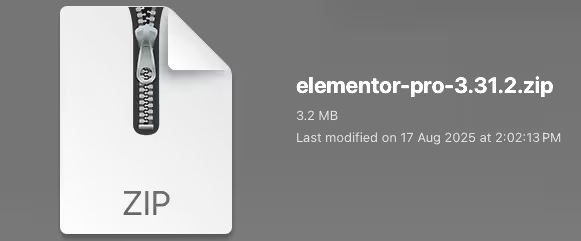
Find the plugin's .zip file on your computer. Right-click and extract its contents to a new folder.
Upload the Plugin Folder
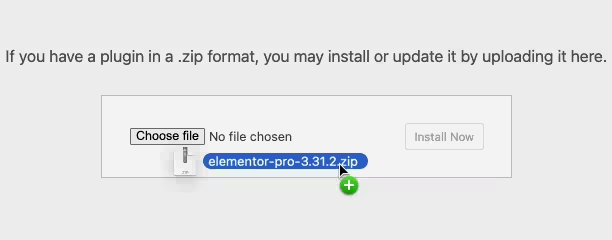
Navigate to the wp-content/plugins folder on your website's side. Then, drag and drop the unzipped plugin folder from your computer into this directory.
Activate the Plugin
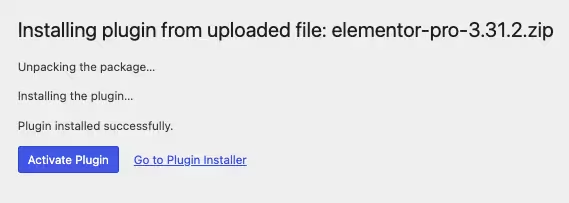
Finally, log in to your WordPress dashboard. Go to the Plugins menu. You should see your new plugin listed. Click Activate to finish the installation.
PureGPL ensures you have all the tools and support you need for seamless installations and updates!
For any installation or technical-related queries, Please contact via Live Chat or Support Ticket.