

EventoZilla – Event Calendar – Elementor Widget Addon
Updated on: January 24, 2026
Version 2.1
Single Purchase
Buy this product once and own it forever.
Membership
Unlock everything on the site for one low price.
Product Overview
EventoZilla is the ultimate event calendar solution for Elementor users, seamlessly integrating with your website to showcase events in a visually stunning way. Whether you're planning a conference, workshop, or social gathering, this addon provides a user-friendly interface that makes event management a breeze. With customizable layouts and styles, you can tailor the calendar to match your brand's aesthetic. Plus, its responsive design ensures that your events look great on any device, keeping your audience engaged. What makes it stand out is its ability to filter events by categories, making it easy for visitors to find exactly what they’re looking for.
Key Features
- Fully customizable event calendar layouts to fit your site’s design.
- Easy event management with an intuitive drag-and-drop interface.
- Category filtering options to help users find specific events quickly.
- Responsive design ensures optimal viewing on all devices.
- Integration with Elementor for seamless page building.
- Recurring event functionality to manage repeat events effortlessly.
- Customizable event details including images, dates, and descriptions.
- Social sharing options to promote your events across various platforms.
- Built-in RSVP feature to help you manage attendance effectively.
Installation & Usage Guide
What You'll Need
- After downloading from our website, first unzip the file. Inside, you may find extra items like templates or documentation. Make sure to use the correct plugin/theme file when installing.
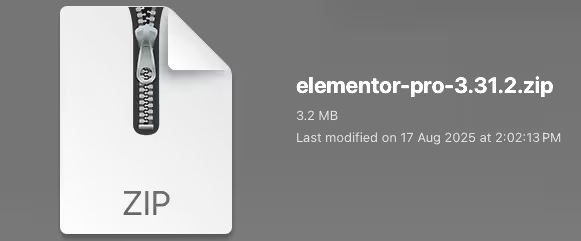
Unzip the Plugin File
Find the plugin's .zip file on your computer. Right-click and extract its contents to a new folder.
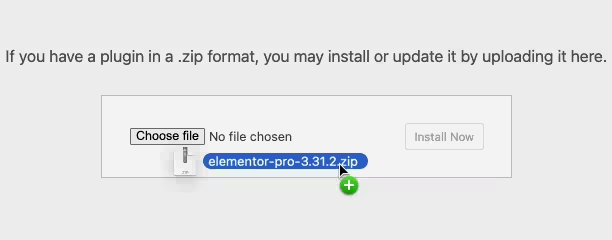
Upload the Plugin Folder
Navigate to the wp-content/plugins folder on your website's side. Then, drag and drop the unzipped plugin folder from your computer into this directory.
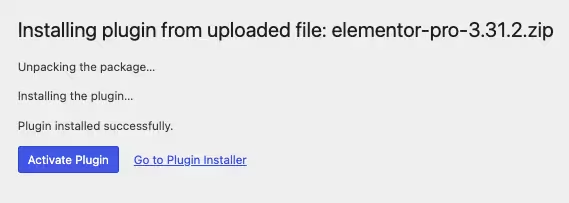
Activate the Plugin
Finally, log in to your WordPress dashboard. Go to the Plugins menu. You should see your new plugin listed. Click Activate to finish the installation.
PureGPL ensures you have all the tools and support you need for seamless installations and updates!
For any installation or technical-related queries, Please contact via Live Chat or Support Ticket.