

SnapOrbital | LearnDash Private Sessions
Updated on: January 15, 2026
Version 1.3.8.3
Single Purchase
Buy this product once and own it forever.
Membership
Unlock everything on the site for one low price.
Product Overview
SnapOrbital's LearnDash Private Sessions offer a transformative way to engage with your learners. This powerful plugin allows educators to schedule one-on-one sessions effortlessly, ensuring personalized attention and tailored learning experiences. With an intuitive interface, managing appointments has never been easier. Plus, it seamlessly integrates with LearnDash, making it a perfect fit for your online courses. Whether you're a tutor, coach, or instructor, this tool enhances your teaching strategy by providing direct interaction with your students.
Key Features
- Easy scheduling of private sessions directly within LearnDash.
- Customizable session durations to fit your teaching style.
- Automated reminders sent to both educators and learners.
- User-friendly interface for hassle-free management of appointments.
- Integration with popular payment gateways for monetized sessions.
- Supports video conferencing tools for seamless online interactions.
- Flexible availability settings to accommodate your schedule.
- Comprehensive reporting on session engagement and outcomes.
Installation & Usage Guide
What You'll Need
- After downloading from our website, first unzip the file. Inside, you may find extra items like templates or documentation. Make sure to use the correct plugin/theme file when installing.
Unzip the Plugin File
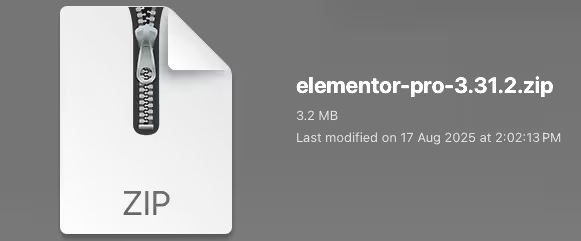
Find the plugin's .zip file on your computer. Right-click and extract its contents to a new folder.
Upload the Plugin Folder
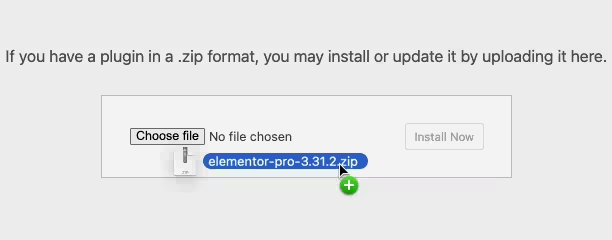
Navigate to the wp-content/plugins folder on your website's side. Then, drag and drop the unzipped plugin folder from your computer into this directory.
Activate the Plugin
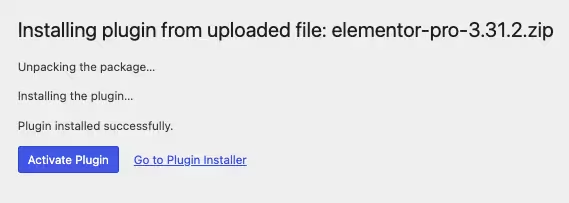
Finally, log in to your WordPress dashboard. Go to the Plugins menu. You should see your new plugin listed. Click Activate to finish the installation.
PureGPL ensures you have all the tools and support you need for seamless installations and updates!
For any installation or technical-related queries, Please contact via Live Chat or Support Ticket.