

Next3 Offload
Updated on: February 7, 2026
Version 29/01/2026
Single Purchase
Buy this product once and own it forever.
Membership
Unlock everything on the site for one low price.
Product Overview
Next3 Offload is a powerful WordPress plugin designed to streamline your media management process. Say goodbye to storage limitations and slow loading times, as this plugin allows you to offload your media files to external storage solutions with ease. With a user-friendly interface, you can quickly configure settings and start transferring files in no time. Plus, the plugin supports various cloud storage providers, making it flexible for your needs. What makes it stand out is its ability to maintain high performance while ensuring your website remains fast and responsive.
Key Features
- Seamless integration with popular cloud storage services like Amazon S3, Google Cloud, and more.
- Automatic offloading of new uploads, saving you time and hassle.
- Customizable settings to fit your specific media management needs.
- Enhanced website performance by reducing server load.
- Easy-to-use dashboard for monitoring your offloaded media files.
- Secure file transfer and storage to keep your data safe.
- Support for large file uploads without compromising speed.
- Regular updates and dedicated support to ensure optimal functionality.
Installation & Usage Guide
What You'll Need
- After downloading from our website, first unzip the file. Inside, you may find extra items like templates or documentation. Make sure to use the correct plugin/theme file when installing.
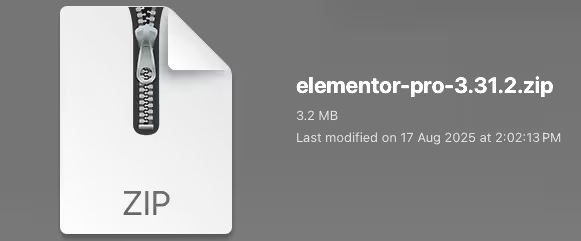
Unzip the Plugin File
Find the plugin's .zip file on your computer. Right-click and extract its contents to a new folder.
Upload the Plugin Folder
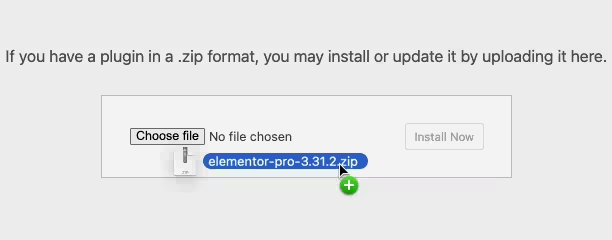
Navigate to the wp-content/plugins folder on your website's side. Then, drag and drop the unzipped plugin folder from your computer into this directory.
Activate the Plugin
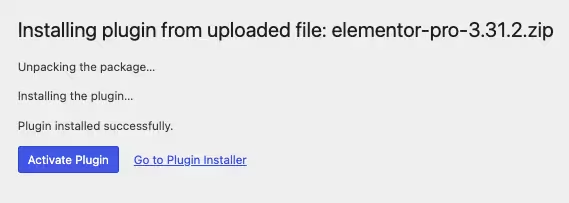
Finally, log in to your WordPress dashboard. Go to the Plugins menu. You should see your new plugin listed. Click Activate to finish the installation.
PureGPL ensures you have all the tools and support you need for seamless installations and updates!
For any installation or technical-related queries, Please contact via Live Chat or Support Ticket.