

BWD Business Hours Addon for Elementor
Updated on: January 7, 2026
Version 1.6

Single Purchase
Buy this product once and own it forever.
Membership
Unlock everything on the site for one low price.
Product Overview
The BWD Business Hours Addon for Elementor is the perfect tool for businesses looking to display their operating hours with style and clarity. This plugin seamlessly integrates with Elementor, allowing you to create a visually appealing representation of your business hours. Whether you're a retail shop, restaurant, or service provider, this addon makes it easy to inform your customers when you're open. Plus, with its user-friendly interface, you can customize the look to match your website's design effortlessly. What makes it stand out is its responsive design, ensuring your hours look great on any device.
Key Features
- Easy integration with Elementor for a hassle-free setup.
- Customizable styles to match your website's theme.
- Responsive design that looks great on all devices.
- Multiple layout options to choose from.
- Ability to display special hours for holidays or events.
- User-friendly interface for quick and easy adjustments.
- Supports various time formats to suit your needs.
- Regular updates to keep up with the latest WordPress standards.
Installation & Usage Guide
What You'll Need
- After downloading from our website, first unzip the file. Inside, you may find extra items like templates or documentation. Make sure to use the correct plugin/theme file when installing.
Unzip the Plugin File
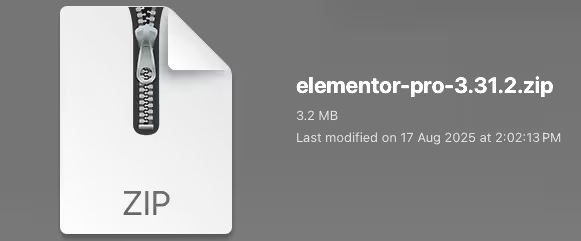
Find the plugin's .zip file on your computer. Right-click and extract its contents to a new folder.
Upload the Plugin Folder
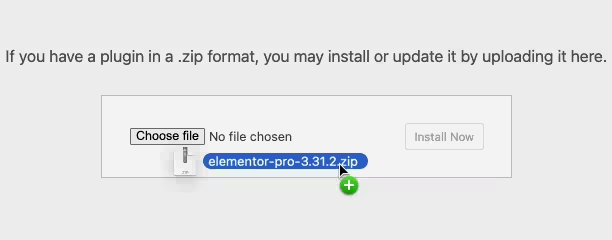
Navigate to the wp-content/plugins folder on your website's side. Then, drag and drop the unzipped plugin folder from your computer into this directory.
Activate the Plugin
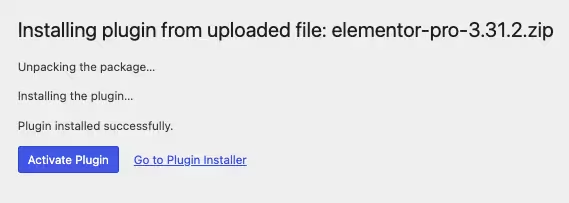
Finally, log in to your WordPress dashboard. Go to the Plugins menu. You should see your new plugin listed. Click Activate to finish the installation.
PureGPL ensures you have all the tools and support you need for seamless installations and updates!
For any installation or technical-related queries, Please contact via Live Chat or Support Ticket.